Sharing files and folders to multiple people in OneDrive is easy.
It works from a top down approach, so for instance if I shared a folder (Folder1) containing folders (Folder A and Folder B) it would allow whomever I have shared Folder 1 with to see the contents of Folders and B
Firstly make sure the files you want to share are in your OneDrive
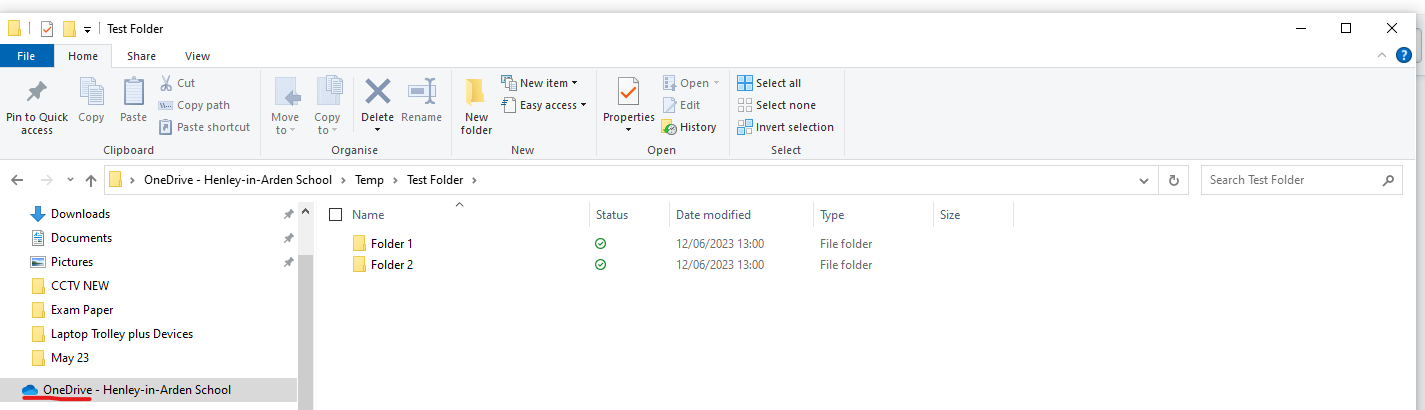
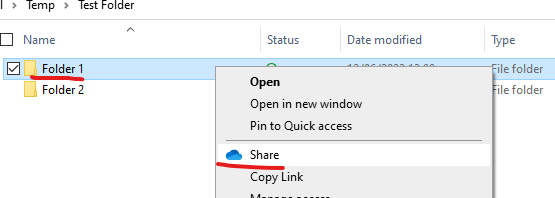
Right Click the Relevant folder and click share
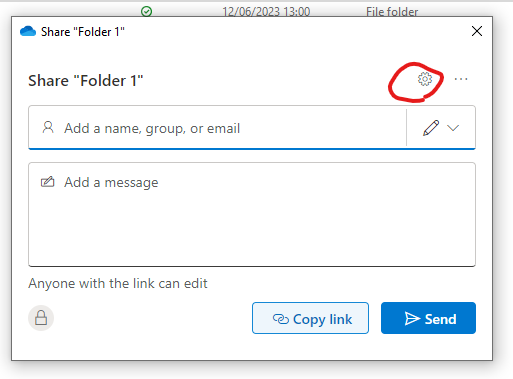
Click on the Options button, looks like a Cog
Here we can make the share as closed or open as we want, to share with people outside of the school click on “Anyone”
If you don’t want the people who you have shared this with to be able to make changes change the “can edit” button to “view only”
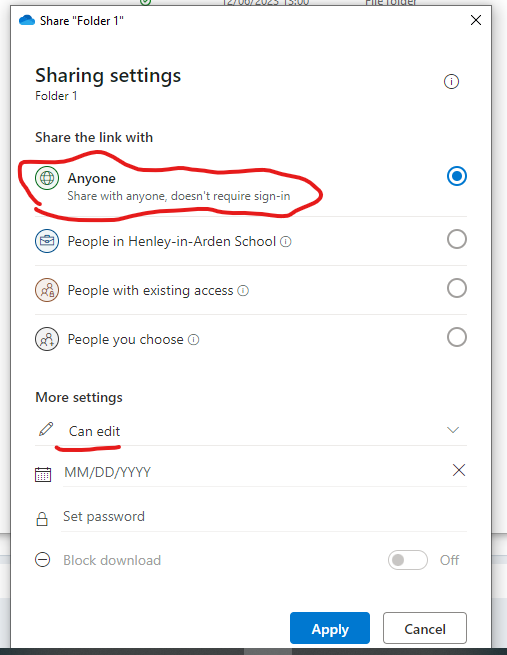
Press “apply” and then click on “Copy Link”
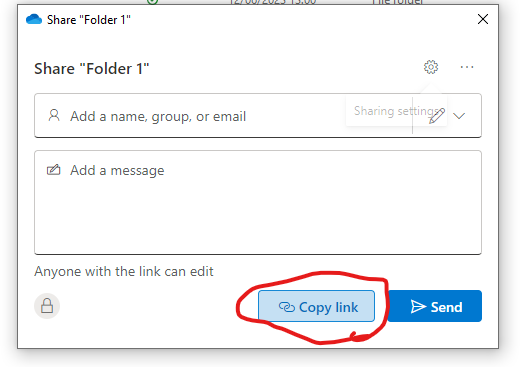
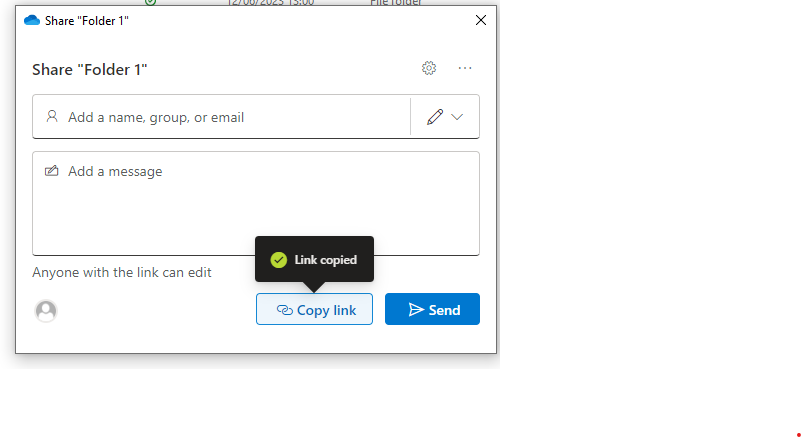
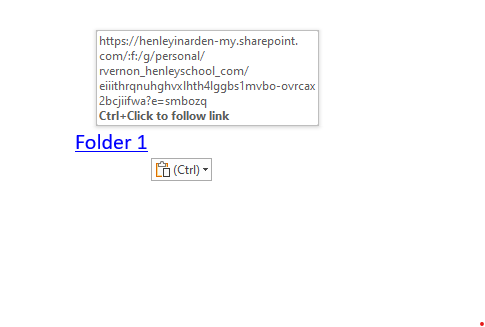
This Link will then work like a normal web URL and can be put into anything such as Word Documents, Emails, Teams Messages or PowerPoints
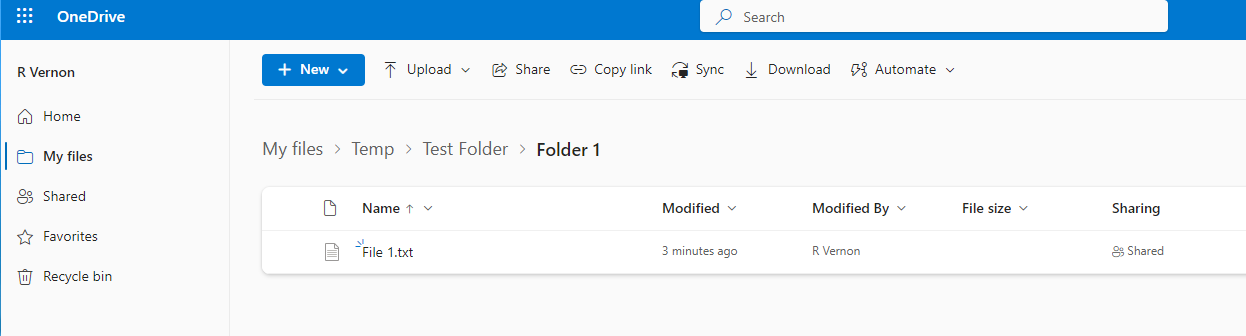
When someone clicks on the link they will be taken to this page where they can view the whole contents of the folder
Was this article helpful?
That’s Great!
Thank you for your feedback
Sorry! We couldn't be helpful
Thank you for your feedback
Feedback sent
We appreciate your effort and will try to fix the article